How to keep your account secure with Multi-Factor Authentication (MFA)

6 minute read
|8 Apr 2026
Keep your account safe
Table of contents
  • 1.
    What is Multi-Factor Authentication? 
  • 2.
    How does MFA protect your CMC Invest account? 
  • 3.
    How to set up MFA 
  • 4.
    Recovery codes 
  • 5.
    Best practices for staying secure 
  • 6.
    Final word 

Protecting your account is a priority. Multi-Factor Authentication, or MFA, adds an extra layer of security to help keep your CMC Invest account safe. 

What is Multi-Factor Authentication? 

Multi-Factor Authentication (MFA) is a security feature that requires more than just your password to log in. Instead of relying on a single step, MFA uses two or more forms of verification, such as: 

  • Something you know, like your password  

  • Something you have, like your mobile device or authentication app  

This means that even if someone gains access to your password, they may still not be able to access your account. 

How does MFA protect your CMC Invest account? 

When MFA is enabled, your login process becomes more secure. If you sign in from a new device or use a private browsing window, you will be asked to: 

  • Enter your password  

  • Enter a one-time verification code  

This code may be sent to your registered mobile number via SMS, email, or generated through your chosen MFA method such as push notifications or an authenticator app. 

This additional step helps confirm that it is really you accessing your account. To ensure this works smoothly, it is important to keep your mobile number and email address up to date in: Settings > Personal Details 

MFA Step 1

How to set up MFA 

You can enable MFA through the CMC Invest web platform, and once it is set up it will apply across both web and mobile.

Option 1: Set up MFA with push notifications  

You can enable MFA with push notifications so that you receive a push notification when required, rather than an SMS. 

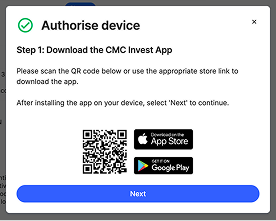
MFA Step 3

To enable MFA using push notifications: 

  1. Log in to the new web platform 

  1. Navigate to Settings > Personal Details 

  1. Under Multi-factor authentication select Activate 

  1. You’ll be sent a code by SMS or email. Enter the code where requested. 

  1. Select Push Notification and Next  

  1. Open the CMC Invest mobile app and tap the QR code icon at the top left of the login page. Then, scan the QR code to finalise your set-up.  

  1. Once your activation is completed you’ll see recovery codes. Save these codes in a safe place and use them to authenticate your account if you lose access to your MFA device. 

Option 2: Set up MFA with an authenticator app  

You can enable MFA using an authenticator app so that you enter a code generated by the app when required, rather than an SMS. 

Authenticator apps are secure mobile apps that generate time-based, one-time codes on your device. These codes refresh regularly and are not sent over SMS, which may provide an added layer of security. Common examples include Google Authenticator and Microsoft Authenticator, which are widely used and trusted. 

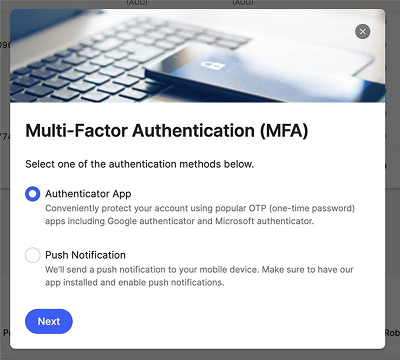
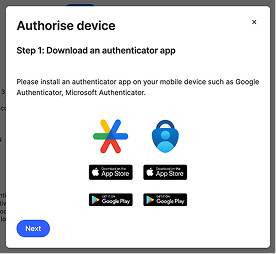
MFA Step 2

To enable MFA using an authenticator app: 

  1. Log in to the new web platform 

  1. Navigate to Settings > Personal Details 

  1. Under Multi-factor authentication select Activate 

  1. You’ll be sent a code by SMS or email. Enter the code where requested. 

  1. Select Select Authenticator App (Preferred) and Next.

  1. You will be prompted to download a trusted third-party authenticator or, to use an authenticator app already installed on your mobile device. 

  1. Scan the QR code from your third-party authenticator app. To complete the setup, enter the code from your app into the Verification code window.   

  1. Once your activation is completed you’ll see recovery codes. Save these codes in a safe place and use them to authenticate your account if you lose access to your MFA device. 

Recovery codes 

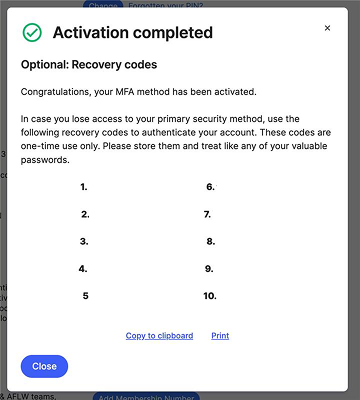
At the end of setting up MFA, whether you choose an authenticator app or push notifications, you will be shown a set of recovery codes. 

MFA Recovery Codes

These are one-time use backup codes that can be used to access your account if you lose access to your usual MFA method, such as your mobile device or authenticator app. 

Each code can only be used once, so it is important to store them somewhere secure and accessible only to you. For example, you may need a recovery code if: 

  • You lose or replace your phone  

  • Your authenticator app is no longer available  

  • You are unable to receive push notifications or verification codes 

Best practices for staying secure 

Using MFA is a strong step, but there are a few additional habits that may help keep your account protected, especially as scams become more sophisticated. 

  • Use a strong, unique password that you do not reuse across other websites or services  

  • Keep your contact details up to date so you can receive important security notifications  

  • Never share your login details or verification codes, even if the request appears urgent  

Scammers may try to contact you by phone, SMS or email while pretending to be from CMC Invest. These messages can sometimes appear convincing, but there are a few ways to identify potential scams: 

  • Unexpected contact: Be cautious of unsolicited messages or calls asking for account details or prompting urgent action  

  • Requests for sensitive information: CMC Invest will not ask for your password, full login details or MFA codes  

  • Urgency or pressure: Messages that create a sense of urgency, such as claiming your account is at risk, should be treated with caution  

  • Suspicious links or attachments: Do not click or download anything from unknown or unverified sources  

Additional warning signs may include: 

  • Spelling errors or unusual formatting  

  • Sender details that appear similar but are not official, including email addresses, phone numbers or caller IDs  

  • Requests to “secure” or “verify” your account via a link or action  

  • Attempts to collect personal or security information 

Final word 

Keeping your account secure is an ongoing process, and enabling MFA is one of the most effective steps you can take. By adding this extra layer of protection and staying alert to potential scams or suspicious activity, you can help reduce the risk of unauthorised access and keep your CMC Invest account safe. 

Disclaimer: This article provides general information only. It has been prepared without taking account of your objectives, financial situation or needs. It is not to be construed as a solicitation or an offer to buy or sell any financial instruments, or as a recommendation and/or investment advice. It does not intend to support an investment decision and it should not be relied upon by you in evaluating the merits of investing in any financial instruments. You should consider your objectives, financial situation and needs before acting on the information in this article. CMC Markets believes that the information in this article is correct, and any opinions and conclusions are reasonably held or made on information available at the time of its compilation, but no representation or warranty is made as to the accuracy, reliability or completeness of any statements made in this article. CMC Markets is under no obligation to, and does not, update or keep current the information contained in this article. Neither CMC Markets nor any of its affiliates or subsidiaries accepts liability for loss or damage arising out of the use of all or any part of this article. Any opinions or conclusions set forth in this article are subject to change without notice and may differ or be contrary to the opinions or conclusions expressed by any other members of CMC Markets.

Invest with Australia's favourite non-bank stockbroker.
$0 brokerage on the ASX* and in the US, UK, Canada and Japan^
Access 45,000+ stocks, ETFs and more from one account
Canstar Broker of the Year –15 years in a row
*First buy up to $1,000, per security, per day. Excludes margin loan settled trades.^FX spreads apply.
Support
Support
x

Welcome to CMC Markets Support!

To begin, please select the product your query is related to.