
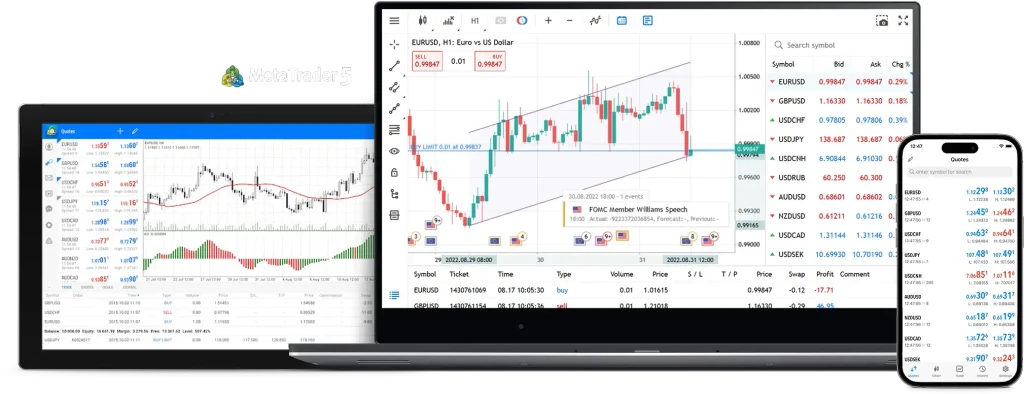
Built for traders who want more from one platform
MT5 vs MT4: what's the difference?
MT5 gives you everything you need to analyze the markets, execute trades and automate your strategies, all on one powerful platform.


FAQs
You can download and install the MT5 platform here. Please note that the download link will not work on mobile devices and tablets.
For mobile, install the MetaTrader 5 app via the App Store or Google Play Store.
Access the Client Admin Portal using the email address and password you used for your initial application.
Select your MT5 account under account selection
Go to "Settings" and click on "Change Password."
Create a new password that meets the requirements indicated on the portal.
After successfully creating your password, you can download the MT5 trading platform via the "Download MT5" button at the top of the Client Admin Portal.
For PC:
Download and install the MT5 software.
Launch the MT5 software.
Click on File on the top left of the platform
Select Login to Trade Account.
Enter your account number and MT5 password.
Select the server CMCMarkets-MT5-LIVE or CMCMarkets-MT5-DEMO.
Once you have completed these steps, you should be able to log into your MT5 account without any problems.
For Mobile:
Install the MetaTrader 5 app via the App Store or Google Play Store.
Launch the Metatrader 5 app.
Select Settings and click on Trade Accounts.
Select the “+” sign on the top right and search CMC Markets from the search bar at the bottom of the screen.
Select CMC Markets Plc and enter your account number and MT5 password.
Select the server CMCMarkets-MT5-LIVE or CMCMarkets-MT5-DEMO.
Click Sign in at the bottom of your screen, and you are now successfully logged in!
When you trade with us via MT5, you need one password to log in to the MT5 platform and another to log in to the admin portal. In the admin portal, you can quickly and easily fund your MT5 account, manage passwords, and view your account balance. You can also view open positions.
Your password for the admin portal is the password you set on the account opening form, or your existing CMC platform password if you already have an account with us.
Your MT5 password can be set within the admin portal.
Launch the MT5 platform. The icon should be a shortcut on your desktop. The MT5 platform will open on your screen.
In the "Navigator" section on the left side of the platform, you will see the account you initially logged in with. You can show or hide the Navigator window using the keyboard shortcut Ctrl + N.
Select (double-click) the account you want to access and enter the following information:
1. Login (your MT5 account number)
2. Your MT5 passwordYou should now be logged in. You can verify your login in the "Journal" or by checking the icon in the status bar at the bottom.
If you already have a demo or live account with CMC Markets and open another account, you do not need to download or install the MT5 platform again. Reinstalling MT5 may result in the loss of previously saved preferences.
Create a password within the admin portal.
Follow the “How to create your MT5 password” & “How to log in to MT5” guidelines above. (but select the demo server – CMCMarkets-MT5-DEMO).
In MT5, ongoing holding costs ("swap") are recorded while a position is open. Therefore, there may be a difference between the MT5 balance and the balance in the CMC Management Portal. To reconcile the values, simply add the current swap value to the MT5 balance – e.g., MT5 balance + swap = balance in the admin portal. Once all positions are closed, the values will match.
Fund your account through the CMC Markets admin portal on a PC/Mac.
To log in, you will need your admin portal username and password, not your MT5 platform login details. The MT5 funding portal also supports two-factor authentication (2FA) for enabled accounts.
Once you've logged in, select the 'Funding' window from the main navigation in the admin portal to deposit via credit card, bill payment, or wire transfer.
You can create a quick link icon on your mobile homepage for easy access to the funding portal:
iOS (Safari) users: Once the page is loaded, tap the share button at the bottom of the screen and select 'Add to Home Screen'.
Android (Chrome) users: Once the page is loaded, tap the menu icon in the top right of the browser and select 'Add to Home Screen'.
Remember, your MT5 platform password is different from your admin portal password.
Demo accounts remain active as long as you log in to the MT5 platform at least once every 30 days. If you do not log in within this period, your account will be automatically closed. You can open a new demo account at any time.
Client money is held in segregated accounts, in line with applicable regulatory requirements. Segregation means client money is kept separate from the firm's own money. Regulatory protection doesn't remove the risk of trading losses.
Yes, CMC Markets Canada Inc. is a member of the Canadian Investment Regulatory Organization (CIRO). CFDs are distributed in Canada by CMC Markets Canada Inc. acting as principal.
There's no fee to open an account. Trading costs may apply when you trade, including spreads, commissions, holding costs, and other applicable charges.
CMC Markets may make money from the spread, which is the difference between the buy and sell prices. Depending on the account type and product, commissions and holding costs may also apply.
CMC Markets Canada offers access to CFDs across forex and other markets. Product availability may vary by account type, platform, and jurisdiction.
2 Available with our FX Active account.
3 0.062 seconds MT5 market orders CFD average trade execution time, April 2026.


Open a demo account
Start trading with a live account today or try a demo with $10,000 of virtual funds.