Getting started with MT4
Published on: 27/07/2022 | Modified on: 28/03/2024
This article offers a complete walkthrough of the MetaTrader 4 (MT4) platform, including what it is, how to use it, what types of financial markets you can access, how to download the software and set up your account, and how to install customisable indicators and add-ons. Continue reading to explore the world of MetaTrader 4 with us.
- :
- :
MT4 is an international platform allowing users to trade contracts for difference (CFDs)
- Access 200+ instruments such as currency pairs, commodities and indices
Users can automate their trades using Expert Advisors (EAs)
There’s a wide range of chart types, technical indicators and add-ons available
You can trade on desktop (PC or Mac), or through your Android mobile device
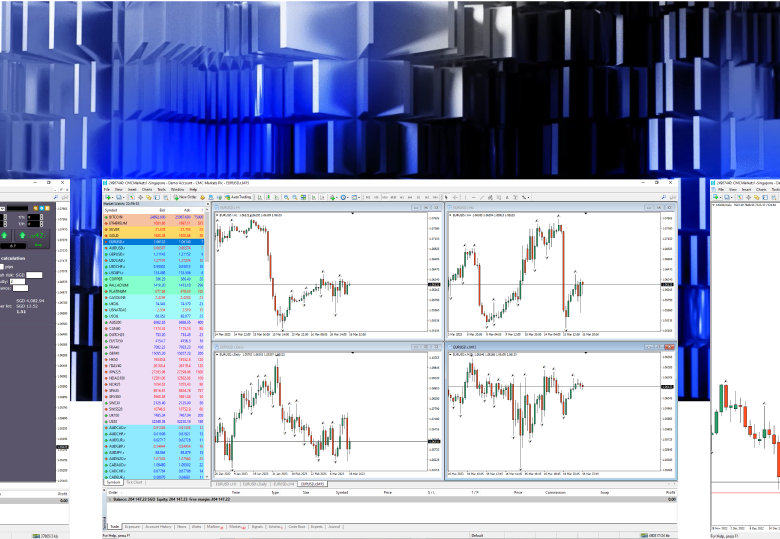
Example of an MT4 chart screen
What is MT4 and how do you trade on it?
MetaTrader 4 is a globally renowned online trading platform originally released in 2005, which offers the capability to automate your CFD trading. While it’s often associated with forex trading, it also offers users the ability to trade across a range of indices and commodities, either at home or on the go through a mobile app.
You can customise your setup to suit your trading preferences. For example, you can automate your trading with Expert Advisor programs – algorithms which open and close trades on your behalf, according to set parameters. Users also have access to a wide range of technical analysis tools and chart types, and you can customise your trading thanks to a range of add-ons and indicators.
Why is the platform so popular with traders?
The platform is popular because it allows traders to analyse several key financial markets covering forex, indices and commodities, with a huge range of technical indicators, charts and graphs. These indicators are particularly useful for short-term traders, who tend to focus more on technical analysis, rather than fundamental aspects.
The number of available features was a key catalyst for MT4’s popularity when the platform was unveiled in 2005. The platform was groundbreaking at the time, offering a range of key features to support users’ trading and market analysis. These included multiple, integrated, and easy-to-use charts; navigator, market watch and indicators’ windows; over 80 pre-installed indicators; and the ability for automated trading.
Since launching, the platform has continued to regularly release new features, including a news area, signals section, one-click trading and additional trading instruments.
Viewing multiple charts on the same screen
Getting set up
It’s a fairly straightforward process to create an account, download the software and begin trading. View our product page for more information on how to download MT4 for PC or Mac, or if you’re ready, get started using the button below.
How to log in to MT4
To set your MT4 password, please log in to the admin portal using the password you created on the application form.
Launch the platform. The icon shortcut should be available on your desktop once you have downloaded and installed the software.
Connect to the CMC server. You can find the server name at the top of the emails we sent you during the application process.
Select ‘Existing trade account’ to log in.
The following details will now be required: a) login (this is your account ID) and b) your password
You should now be logged in. You can verify this by looking at the 'Journal' tab and the icon in the status bar at the bottom.
Why do I need two passwords?
When trading on MT4 with us, you will need one password to access the CMC admin portal and a separate password to log in to MT4.
Your CMC admin portal password was created when you submitted your online MT4 application form (or your existing CMC (Next Generation) platform password if you already have an account with us). Once the application has been approved, you will sign in to the CMC admin portal to create your MT4 password.
In the admin portal, you can find information on how to fund your MT4 account, find your statements and view your account balances.
How to log in after the first time
Launch the platform.
In the ‘Navigator’ section on the left of the platform, you should see the account you first logged in with. The Navigator window can be toggled on and off using Ctrl+N.
Select the account you want to access and enter the following details: a) login (this is your account ID) and b) your password.
You should now be logged in. You can verify this by looking at the ‘Journal’ and the icon in the status bar at the bottom.
How to fund your account
Fund your account through the CMC Markets admin portal on a PC or Mac, or via our MT4 funding portal on your mobile.
To log in, you will need your admin portal username and password, not your MT4 platform login details. The MT4 funding portal also supports two-factor authentication (2FA) for enabled accounts.
Once you've logged in, select the 'Payments' window from the main navigation in the admin portal to deposit via card, bank transfer, or PayPal. If you've logged in to the funding portal from a mobile, you will see these funding options straight away.
If you're a mobile user, you can create a quick link icon on your mobile homepage for easy access to the funding portal:
iOS (Safari) users: Once the page is loaded, tap the share button at the bottom of the screen and select 'Add to Home Screen'.
Android (Chrome) users: Once the page is loaded, tap the menu icon in the top right of the browser and select 'Add to Home Screen'.
Remember, your MetaTrader 4 platform password is different from your admin portal/mobile funding portal password and is not kept in sync.
What indicators and add-ons are included?
When you trade with us, you’re able to download an additional range of free premium add-ons and indicators, helping you to gain insights into the instruments you trade and enhancing your overall trading experience. Choose from 12 add-ons including mini terminal and sentiment trader, and an extra 18 indicators, such as Renko charts, pivot points and order history. You can access over 2,000 indicators and 1,000 EAs in total.
MT4 users can also add Expert Advisors (EAs), which are automated robots built out of a generated code called MetaQuotes Language 4 (MQL4). Once you install an EA onto the platform, it will automatically follow your instructions and speed up the whole trading process, which is helpful for high-volume traders or those who don’t have time to trade all the time.
EAs take account of data from technical analysis and can trade based on signals they receive from the system, including from new or custom indicators. It’s possible to create your own EA, which can then be customised to fit in with your trading preferences, or you can use one of the many existing EAs.
Example of MT4 technical indicators
Creating your own indicators
To start building a custom indicator, you’ll need to be familiar with MQL4 and MetaEditor tools.
Choose what type of indicator you would like to build: leading or lagging. A leading indicator alerts you to an upcoming new trend or reversal pattern, while a lagging indicator informs you of a new trend while it’s happening. You’ll also need to consider whether the indicator contains only core elements of technical analysis, such as pattern recognition and mathematical calculations, or if it combines elements from existing indicators, such as moving averages and the RSI indicator.
Fill in the properties of your new custom indicator, such as indicator name, developer details and a list of indicator inputs and parameters. All these elements help the indicator draw trend lines within the technical charts.
This process will create a file with the defined settings of the custom indicator. Located within the EA folder, you can choose to open this data folder to start writing the indicator’s new rules and coding. If you decide you would like to create an EA from your custom indicator, you will need to familiarise yourself with the EA builder. Each EA can have its own settings, and you’ll need to incorporate it within your chart to begin the analysis.
You could assess your indicator through backtesting on a demo account, which can help you to update any elements that aren’t compatible with your trading strategy, or the instrument that you’re trading on. Once it begins to prove successful in terms of your trading plan and goals, you can test it for real on the live platform.
Opening a demo account
Create a password within the admin portal.
Follow the live account login steps outlined above (but select the demo server – you can find the server name at the top of the emails we sent you during the application process).
Demo accounts remain active if you log in to the trading platform at least once every 30 days. If you don't log in within that timeframe, your account will automatically be closed. You can set up a new demo account again at any time in the future.
Learn about the features of an MT4 demo account.
How to get started with MT4
Download the software. This is available for PC or Mac, and you can trade on desktop or via a mobile device if you’re on the go.
Create an account. Practice on a demo account with virtual funds, and learn more about trading in volatile markets.
Browse the markets. Trade on some of the most popular instruments, including GBP/USD, the UK 100, and Brent Crude Oil.
Think about risk management. Our mini terminal feature allows you to calculate the lot size corresponding to a cash risk, helping you to optimise your trading plans.
INSTRUMENT | FX ACTIVE MIN SPREAD | Standard cfd account MIN SPREAD | MARGIN RATE | COMMISSION ( PER US $100,000) |
|---|---|---|---|---|
0.0 | US $2.50 | |||
0.0 | US $2.50 | |||
0.0 | US $2.50 | |||
0.0 | US $2.50 | |||
0.0 | US $2.50 | |||
0.0 | US $2.50 |
The minimum spread is the lowest spread we offer on an instrument. If the underlying market spread widens during the trading day, or you're trading out of hours, our spreads may also widen. The spreads shown are for the first price available for the average market trade/bet sizes in the relevant instrument. The spread will widen for larger trade/bet sizes. You can find more information by logging in to the platform.
INSTRUMENT | FX ACTIVE MIN SPREAD | STANDARD CFD ACCOUNT MIN SPREAD | MARGIN RATE | SPREAD DISCOUNT |
|---|---|---|---|---|
A minimum spread is the lowest spread that will be shown on the given product. Minimum spread will vary subject to after-hours trading. If the underlying market spread widens throughout the trading day, or you are trading out of hours, the platform spread may also widen. The spreads shown are for the first price available for the average market trade/bet sizes in the relevant product. The spread will widen for larger trade/bet sizes, see our platform for more information.
INSTRUMENT | FX ACTIVE MIN SPREAD | STANDARD CFD ACCOUNT MIN SPREAD | MARGIN RATE | SPREAD DISCOUNT |
|---|---|---|---|---|
25% | ||||
25% | ||||
25% | ||||
25% | ||||
25% | ||||
25% | ||||
25% | ||||
25% | ||||
25% | ||||
25% | ||||
25% | ||||
25% | ||||
25% | ||||
25% | ||||
25% | ||||
25% | ||||
25% | ||||
25% | ||||
25% | ||||
25% | ||||
25% | ||||
25% | ||||
25% | ||||
25% | ||||
25% | ||||
25% | ||||
25% | ||||
25% | ||||
25% | ||||
25% | ||||
25% | ||||
25% | ||||
25% | ||||
25% | ||||
25% | ||||
25% | ||||
25% | ||||
25% | ||||
25% | ||||
25% | ||||
25% | ||||
25% | ||||
25% | ||||
25% | ||||
25% |
A minimum spread is the lowest spread that will be shown on the given product. Minimum spread will vary subject to after-hours trading. If the underlying market spread widens throughout the trading day, or you are trading out of hours, the platform spread may also widen. The spreads shown are for the first price available for the average market trade/bet sizes in the relevant product. The spread will widen for larger trade/bet sizes, see our platform for more information.
NAME | MIN SPREAD | MARGIN RATE |
|---|---|---|
A minimum spread is the lowest spread that will be shown on the given product. Minimum spread will vary subject to after-hours trading. If the underlying market spread widens throughout the trading day, or you are trading out of hours, the platform spread may also widen. The spreads shown are for the first price available for the average market trade/bet sizes in the relevant product. The spread will widen for larger trade/bet sizes, see our platform for more information.
NAME | MIN SPREAD | MARGIN RATE |
|---|---|---|
A minimum spread is the lowest spread that will be shown on the given product. Minimum spread will vary subject to after-hours trading. If the underlying market spread widens throughout the trading day, or you are trading out of hours, the platform spread may also widen. The spreads shown are for the first price available for the average market trade/bet sizes in the relevant product. The spread will widen for larger trade/bet sizes, see our platform for more information.
NAME | MIN SPREAD | MARGIN RATE |
|---|---|---|
A minimum spread is the lowest spread that will be shown on the given product. Minimum spread will vary subject to after-hours trading. If the underlying market spread widens throughout the trading day, or you are trading out of hours, the platform spread may also widen. The spreads shown are for the first price available for the average market trade/bet sizes in the relevant product. The spread will widen for larger trade/bet sizes, see our platform for more information.
NAME | MIN SPREAD | MARGIN RATE |
|---|---|---|
A minimum spread is the lowest spread that will be shown on the given product. Minimum spread will vary subject to after-hours trading. If the underlying market spread widens throughout the trading day, or you are trading out of hours, the platform spread may also widen. The spreads shown are for the first price available for the average market trade/bet sizes in the relevant product. The spread will widen for larger trade/bet sizes, see our platform for more information.
NAME | MIN SPREAD | MARGIN RATE |
|---|---|---|
A minimum spread is the lowest spread that will be shown on the given product. Minimum spread will vary subject to after-hours trading. If the underlying market spread widens throughout the trading day, or you are trading out of hours, the platform spread may also widen. The spreads shown are for the first price available for the average market trade/bet sizes in the relevant product. The spread will widen for larger trade/bet sizes, see our platform for more information.
Already have an account with us?
If you already have a demo or live MT4 account with us and are opening a second account, you don’t need to download and reinstall the platform again. If you do reinstall MT4, you may lose any preferences you’ve set up previously.
You can download and install the MT4 platform here.
Please note that the download link does not work on mobile and tablet devices.
Yes, MT4 works on both desktop and mobile, so you can monitor the markets, receive alerts and trade when you’re away from home. You’ll need to download the official MT4 app from the App Store or Google Play, depending on whether you have an iPhone or Android device, and then log in using your account details with us.
Yes, you can spread bet on MT4 with us. Get access to over 200 spread betting instruments on MT4, including forex, indices and commodities.