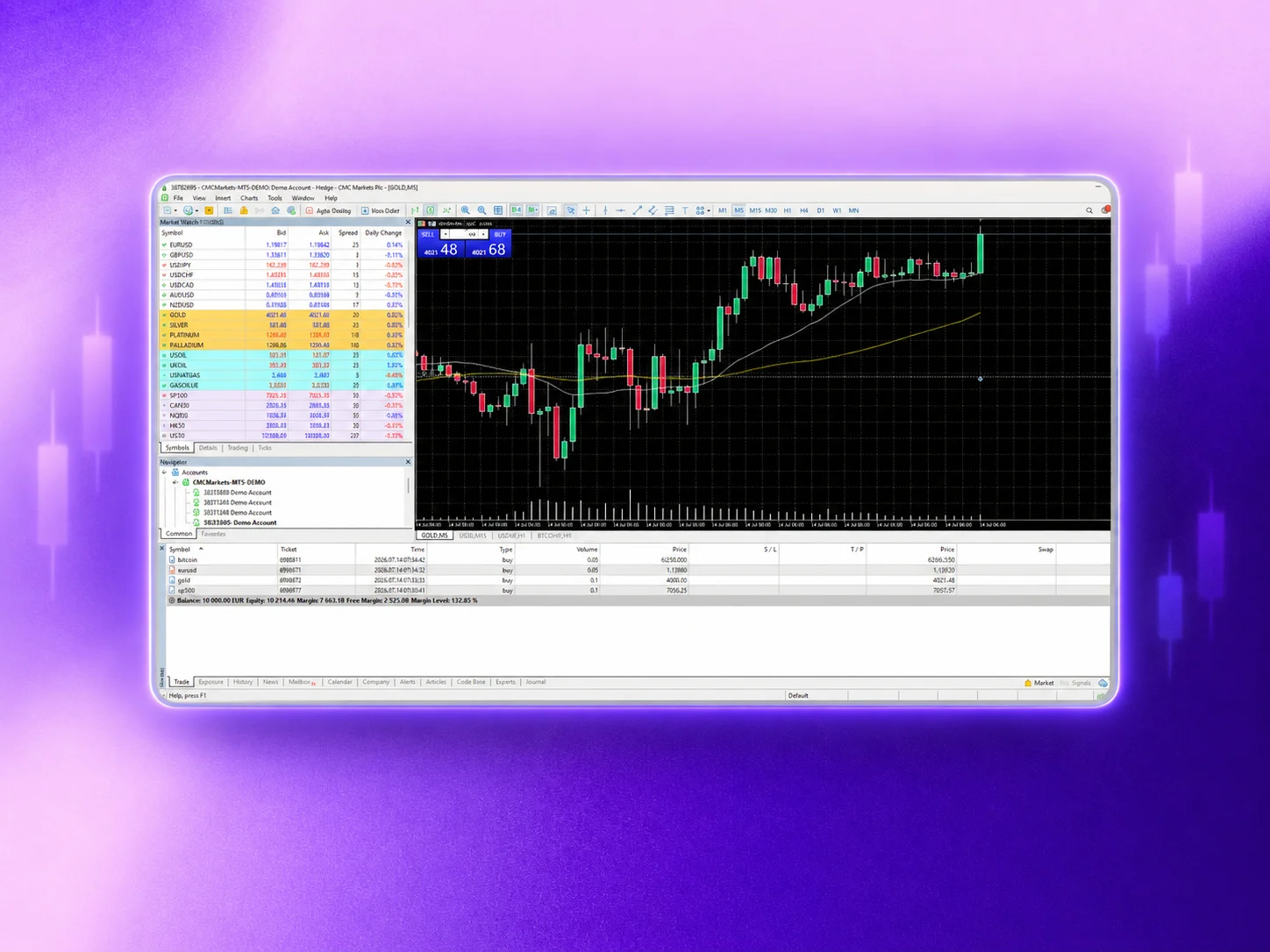
Getting started with MT5

5 minute read
|5 Aug 2026
CMC Markets MT5 platform
Table of contents
  • 1.
    What is MT5, and how do you trade on it?
  • 2.
    Why is the platform so popular with traders?
  • 3.
    Getting ready for MT5
  • 4.
    How to create your MT5 password
  • 5.
    How to log in to MT5 
  • 6.
    How to fund your account
  • 7.
    What indicators and add-ons are included?
  • 8.
    Opening a demo account
  • 9.
    Already have an MT5 account with us?

This article offers a complete walkthrough of the MT5 platform, including what it is, how to use it, what types of financial markets you can access, how to download the software and set up your account, and how to install customisable indicators and add-ons.

What is MT5, and how do you trade on it?

MetaTrader 5 (MT5) is a powerful multi-asset online trading platform originally released in 2010, which offers advanced tools to automate your trading. While it builds on the legacy of MT4, it also supports a broader range of markets, including stocks and futures, either at home or on the go through a mobile app.

You can customise your setup to suit your trading preferences. For example, you can automate your trading with Expert Advisor programs, algorithms that open and close trades on your behalf, according to set parameters. Users also have access to a wide range of technical analysis tools and chart types, and you can customise your trading thanks to a range of add-ons and indicators across multiple asset classes.

Why is the platform so popular with traders?

The platform is popular as it allows traders to analyse a number of key financial markets covering forex, indices, commodities, shares, and futures, with a huge range of technical indicators, charts, and graphs. These indicators are particularly useful for traders who tend to focus more on technical analysis, rather than fundamental aspects.

MT5 introduced additional functionality compared with earlier versions when the platform was unveiled in 2010. The platform introduced a broader range of functionality at the time, offering an expanded range of key features to support users' trading and market analysis.

Key features include:

  • Multi-chart layouts.

  • Integrated and easy-to-use charts.

  • Navigator, market watch, and indicators' windows.

  • Over 80 pre-installed indicators.

  • The ability for automated trading across multiple asset classes.

Since launching, the platform has continued to release new features regularly, including a news area, signals section, one-click trading, an economic calendar, and additional trading instruments.

Getting ready for MT5

To trade on MT5 with CMC Markets, you’ll need a live CMC Markets MT4 account and MT5 access set up through an additional MT5 account.

If you don’t already have a live CMC Markets MT4 account, apply for either an FX Active or Standard MT4 account and complete the application and verification process.

Already have a live CMC Markets MT4 account? Reach out to our Client Services team at support@cmcmarkets.co.nz to request MT5 access. Our Client Services team will then advise you on the next steps.

Once your additional MT5 account is set up, we’ll email you your MT5 login details, including the server name and instructions to log in.

You’ll use separate login details for your CMC Markets account, also known as the Client Admin Portal, and the MT5 platform. Your CMC Markets account details are used to manage your account, funding and settings, while your MT5 login details are used to access MT5 for trading and position management.

How to create your MT5 password

  1. Access the Client Admin Portal using the email address and password you used for your initial application.

  2. Select your MT5 account under account selection

  3. Go to "Settings" and click on "Change Password."

  4. Create a new password that is between 8-16 alphanumeric characters (letters and numbers, no symbols).

  5. After successfully creating your password, you can download the MT5 trading platform via the "Download MT5" button at the top of the Client Admin Portal.

How to log in to MT5 

  1. Download and install the MT5 software using the link and instructions sent to you via our Client Services team. 

  1. Launch the MT5 software.  

  1. Click on File on the top left of the platform 

  1. Select Login to Trade Account. 

  1. Enter your account number and MT5 password. 

  1. Select the server CMCMarkets-MT5-LIVE or CMCMarkets-MT5-DEMO. 

  1. Once you have completed these steps, you should be able to log into your MT5 account without any problems. 

How to fund your account

Fund your MT5 account through your CMC Markets account, also known as the Client Admin Portal, on desktop or mobile.

To access funding, log in to the Client Admin Portal using your CMC Markets account username and password, not your MT5 platform login details. The portal also supports two-factor authentication, or 2FA, for enabled accounts.

Once you’re logged in to the Client Admin Portal, select "Funding" from the main navigation. For your initial deposit, you can fund via bank transfer or POLi. After your first deposit, you can also use debit/credit card or PayPal.

What indicators and add-ons are included?

When you trade with us, you're able to download a broad range of free premium add-ons and indicators, helping you to gain insights into the instruments you trade and enhancing your overall trading experience. The additions include mini terminal and sentiment trader, and a wide selection of indicators, such as Renko charts, pivot points, and order history. You can access over 4,000 indicators and 2,000 EAs in total.

MT5 users can also create or add EAs, which are automated robots built out of a generated code called MetaQuotes Language 5 (MQL5). Once you install an EA onto the platform, it will follow its set parameters and automate the trading process.

EAs take account of data from technical analysis and can trade based on signals they receive from the system, including from new or custom indicators.

Opening a demo account

  1. Apply for a demo account.

  2. Create a password within the Client Admin Portal.

  3. Follow the live account login steps outlined above (but select the demo server – CMCMarkets-MT5-DEMO).

Demo accounts remain active if you log in to the trading platform at least once every 30 days. If you don't log in within that timeframe, your account will automatically be closed. You can set up a new demo account again at any time in the future.

Already have an MT5 account with us?

If you already have a demo or live MT5 account with CMC Markets and want to open a second account, you don’t need to download and reinstall the platform again. If you do reinstall MT5, you may lose any previously set up preferences.

Join an award winning CFD provider
Practise CFD trading with $10,000 of virtual funds on a risk-free demo account.
Access 12,000+ instruments on our award-winning CMC Markets Platform. Including indices, forex and shares.
Enhance your CFD trading on MetaTrader4 with CMC Markets and access 175+ forex pairs.
Tight spreads and low margin rates.